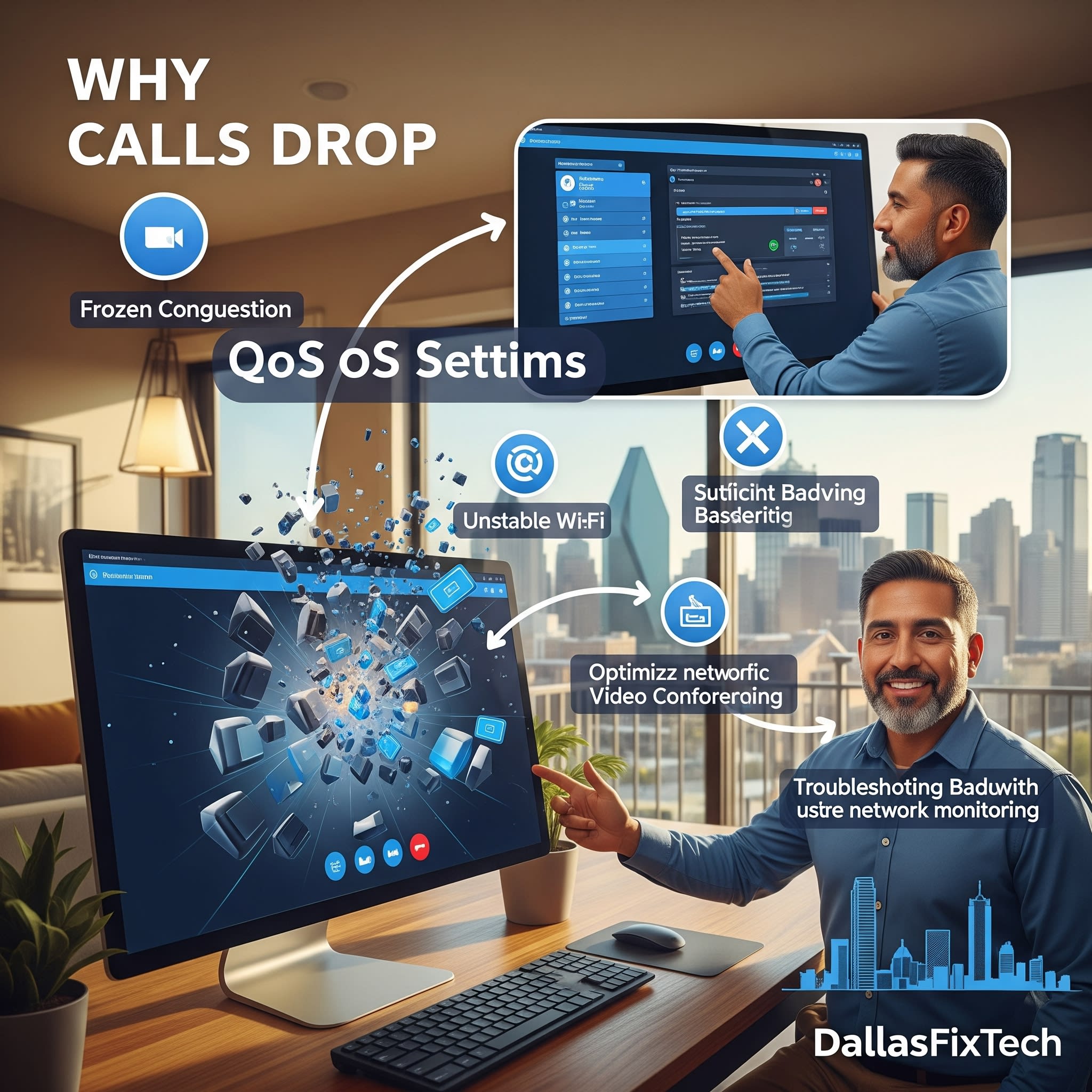
Why Zoom Calls Drop and How to Fix QoS Settings in Dallas Homes: DallasFixTech’s Network Optimization
In today's remote-first world, stable and high-quality **Zoom calls** (and other video conferencing platforms) are critical for work, online learning, and connecting with family. However, nothing is more frustrating than having your **Zoom calls drop or experience lag** in the middle of an important meeting or conversation. This common issue is often caused by network congestion and poor bandwidth prioritization within your Dallas home network. With multiple devices simultaneously streaming, gaming, or downloading, your essential video calls can struggle for bandwidth. **DallasFixTech** understands these connectivity challenges and provides expert solutions to stabilize your video conferencing. We'll guide you on how to configure your router's **QoS (Quality of Service) settings** to prioritize Zoom traffic, ensuring reliable and smooth video calls for your Dallas home.
Causes of Zoom Call Drops & Lag (DallasFixTech Diagnosis)
Your network's performance during video calls can be impacted by:
- Network Congestion from Multiple Devices: If multiple users in your Dallas home are simultaneously streaming 4K video, downloading large files, or engaging in online gaming, this can saturate your internet bandwidth, leaving insufficient resources for Zoom.
- Router Without QoS Enabled or Configured: If your router doesn't have QoS (Quality of Service) enabled or properly configured, it treats all data packets equally. This means your video call might get deprioritized behind a large game update.
- Background Apps Using Excessive Internet: Apps running in the background on your PC or other devices can silently consume bandwidth, even when you're not actively using them.
- Weak Wi-Fi Signal: An unstable or weak Wi-Fi signal to your device can lead to intermittent dropouts or poor video quality.
- ISP Throttling: Some Internet Service Providers (ISPs) might throttle certain types of traffic during peak hours.
- Outdated Router Firmware: Bugs in your router's firmware can cause network instability.
- Zoom App Issues: Outdated Zoom client or a bug within the application.
How to Configure QoS for Zoom Calls (DallasFixTech’s Solutions)
QoS settings vary by router brand, but the core principles remain the same. **DallasFixTech** can assist with specific router models:
- Access Your Router's Admin Interface: Open a web browser and type your router's IP address (e.g., `192.168.1.1`). Log in with your admin username and password.
- Find QoS Settings: Look for sections labeled 'QoS,' 'Quality of Service,' 'Traffic Prioritization,' or 'Bandwidth Management.'
- Identify Zoom Ports and Traffic Types: Zoom typically uses specific TCP/UDP ports. Some routers allow you to prioritize applications by name. If not, you may need to enter specific port ranges or identify traffic by IP/MAC address.
- Enable Quality of Service (QoS) & Prioritize Zoom Traffic: Turn on QoS and set the highest priority for Zoom's traffic. Some routers have a simple 'drag and drop' interface, while others require manual entry. Prioritize the device you use for Zoom calls.
- Limit Bandwidth for Non-Essential Apps: During important meetings, you can configure QoS to limit the bandwidth available to non-essential applications (e.g., torrent clients, large downloads, certain streaming services) to ensure Zoom gets enough.
- Consider Upgrading to Routers with Dynamic QoS Features: Newer, higher-end routers often have 'Adaptive QoS' or 'Smart QoS' features that automatically detect and prioritize real-time applications like video conferencing without extensive manual setup.
- Optimize Your Wi-Fi Connection: Ensure your device is on a strong Wi-Fi signal (preferably 5GHz, if close enough). Consider using a wired Ethernet connection for your Zoom PC for maximum stability.
- Close Unnecessary Background Apps: Close any applications on your computer or other devices that are consuming significant bandwidth in the background.
Get Reliable Video Conferencing in Dallas: Contact DallasFixTech!
Don't let dropping Zoom calls hinder your productivity or online connections. **DallasFixTech** explains why network congestion and poor bandwidth prioritization cause these issues. **Schedule a service** today. Need help optimizing your Dallas home network for video calls? **DallasFixTech** provides expert QoS configuration and network tuning to keep your Zoom meetings smooth. **Call now for a network checkup and reliable video conferencing in Dallas, TX!**


