Speed Up NVMe SSDs: Why Defragmentation Is Not Needed – DallasFixTech’s Optimization Tips in Dallas, TX
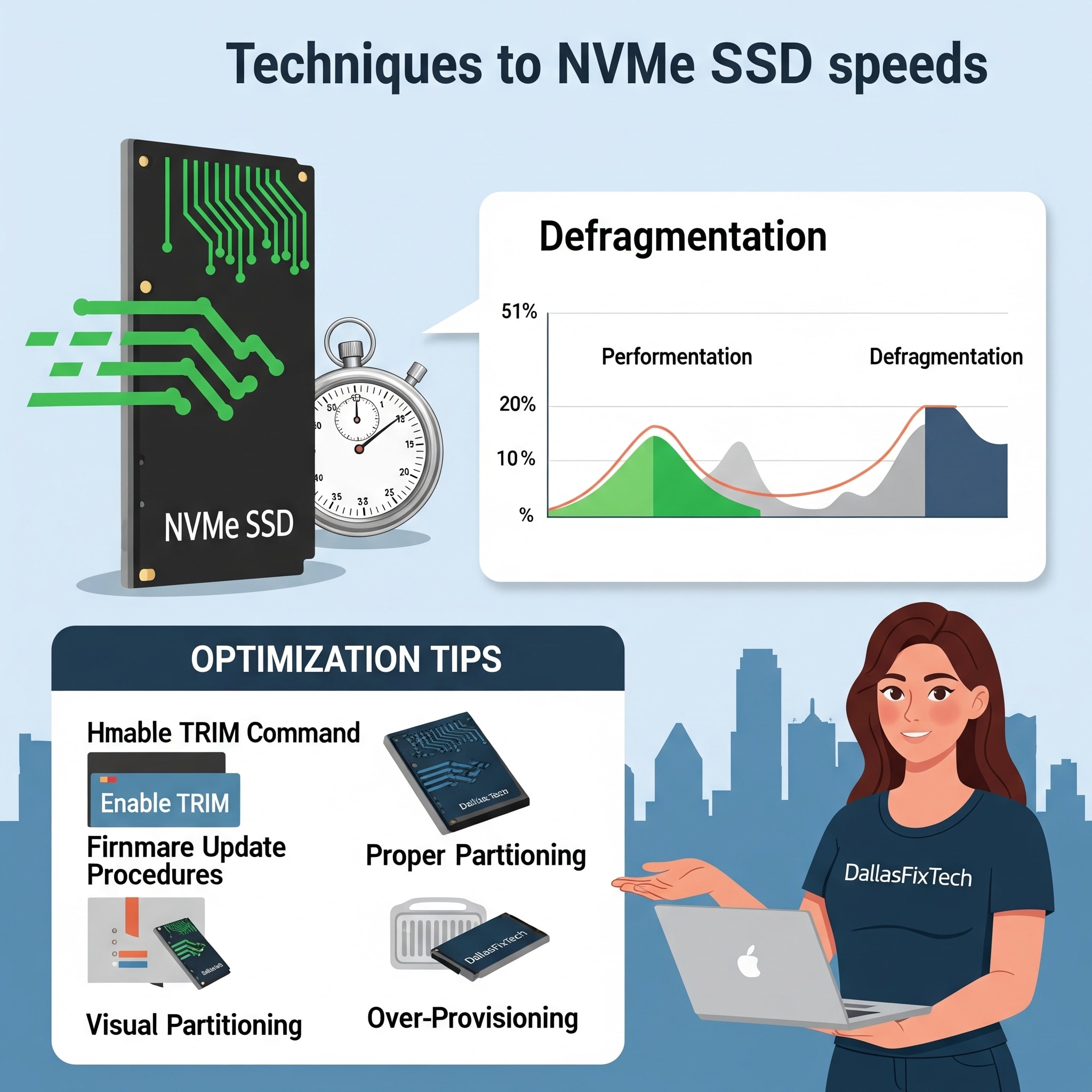
NVMe (Non-Volatile Memory Express) SSDs have become the gold standard for high-performance storage in modern PCs, offering unparalleled speed for booting, loading applications, and transferring large files. This technology provides a dramatic performance leap over older SATA SSDs and traditional hard disk drives (HDDs). However, despite their advanced nature, users in Dallas, TX, sometimes find their **NVMe SSDs slowing down** over time, performing below expectations, or even causing system sluggishness. A common misconception is that SSDs, like HDDs, need defragmentation—but this is a dangerous myth! **DallasFixTech** explains why defragmenting an NVMe SSD can actually shorten its lifespan and shows Dallas users how to safely optimize and maintain your drive’s blazing speed, ensuring maximum performance and extending its longevity without risky practices.
Why Not Defrag NVMe SSDs? (DallasFixTech Myth Busting)
The fundamental architecture of SSDs makes defragmentation unnecessary and harmful:
- SSDs Use Flash Memory (No Moving Parts): Unlike HDDs that have spinning platters and read/write heads that need to physically move to access data (hence fragmentation impacting speed), SSDs use NAND flash memory. Data is retrieved electronically, regardless of its physical location on the chip. Therefore, defragmentation provides **zero performance benefit** for an SSD.
- Defragmentation Harms Lifespan: Each write cycle to an SSD's flash memory cells contributes to wear. Defragmenting an SSD involves constantly rewriting data, causing millions of unnecessary write cycles. This accelerates wear and significantly shortens the SSD's lifespan.
- TRIM Command Handles 'Fragmentation': Modern operating systems use the **TRIM command** (and SSD controllers use 'garbage collection') to efficiently manage free space. TRIM tells the SSD which data blocks are no longer in use and can be safely erased, optimizing the drive's internal organization and ensuring it has clean blocks ready for new writes. This is the SSD's equivalent of 'defragging' its internal space, but it's done intelligently and efficiently by the drive controller itself.
- Wear Leveling: SSDs employ wear-leveling algorithms to distribute write cycles evenly across all flash memory cells, preventing premature wear of any single block. Defragmentation interferes with this process.
DallasFixTech’s Safe and Effective NVMe SSD Optimization Techniques
Implement these proven methods to boost and maintain your SSD's performance and longevity:
- Maintain Sufficient Free Space: This is critical. Keep at least **15-20% of your NVMe SSD space free**. This 'over-provisioned' space allows the SSD controller ample room to perform wear-leveling and garbage collection efficiently in the background, which are crucial for sustained performance and extending lifespan. A nearly full SSD will slow down significantly.
- Ensure TRIM Support is Enabled: For Windows, TRIM is usually enabled by default. You can verify this by opening Command Prompt as Administrator and typing `fsutil behavior query disabledeletenotify`. If it returns `0`, TRIM is enabled.
- Use Manufacturer Utilities for Firmware & Health Monitoring: Most NVMe SSD manufacturers provide their own dedicated software utilities (e.g., **Samsung Magician, WD Dashboard, Crucial Storage Executive, Kingston SSD Manager**). These tools are invaluable for:
- **Firmware Updates:** Crucial for bug fixes, performance improvements, and lifespan optimizations.
- **Health Monitoring (S.M.A.R.T. Data):** Provide detailed S.M.A.R.T. (Self-Monitoring, Analysis, and Reporting Technology) data, giving you insight into the drive's health, temperature, and remaining lifespan.
- **Over-Provisioning Settings:** Some utilities allow you to manually set aside more space for over-provisioning.
- Disable Unnecessary Startup Apps & Background Processes: Too many programs launching at startup consume RAM and CPU resources, which can impact overall system responsiveness, including SSD performance after boot. Manage these via Task Manager (Windows) or System Settings (macOS).
- Adjust Windows Power Settings for Performance: Ensure your Windows Power Plan is set to 'High Performance' or 'Ultimate Performance' (if available). This ensures your CPU and SSD receive maximum power, preventing throttling.
- Ensure Proper Cooling: While SSDs don't generate as much heat as CPUs/GPUs, high temperatures can still impact their lifespan. For NVMe SSDs, especially those under a graphics card, consider installing a dedicated heatsink or ensuring your PC case has good airflow. **DallasFixTech** offers PC cooling optimization services.
- Check for Malware: Malicious software running in the background can consume disk I/O, slowing down your SSD. Perform regular, deep malware scans.
Need Hands-on SSD Tuning? DallasFixTech Offers Expert SSD Optimization Services!
Don't let a slow SSD compromise your PC's potential or lifespan. **DallasFixTech** busts defragmentation myths and shows Dallas users how to safely optimize and maintain SSD speed. **Schedule a service** today. Need hands-on SSD tuning? **Contact DallasFixTech** for expert SSD performance tuning services in Dallas, TX, ensuring your drive delivers blazing-fast performance and lasting reliability!


