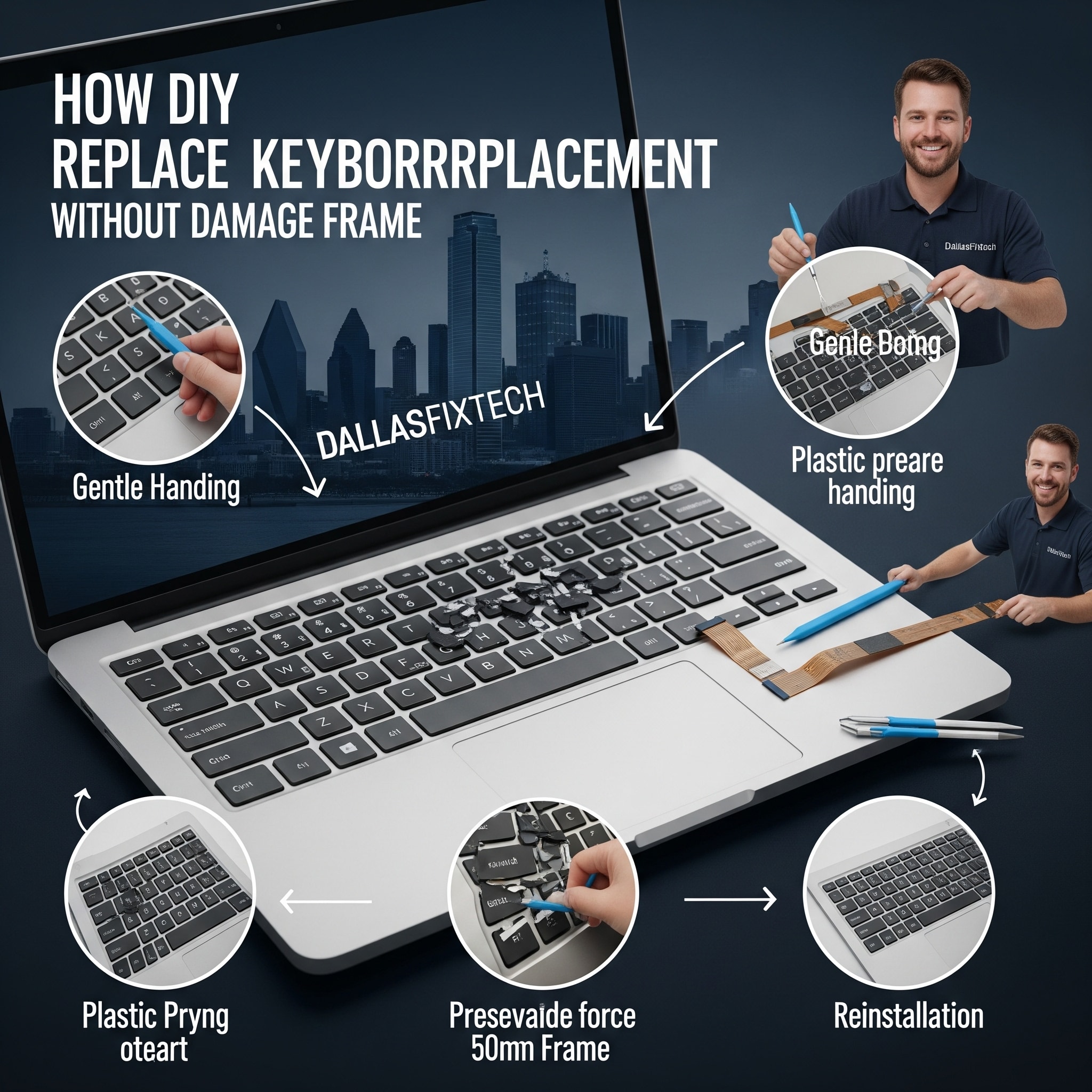
How to Replace a Broken Laptop Keyboard Safely Without Damaging the Frame: DallasFixTech’s Expert Method in Dallas, TX
A broken laptop keyboard—whether due to liquid damage, missing keys, or unresponsive buttons—can render your device frustratingly unusable. While replacing it can seem daunting, especially with concerns about damaging the laptop's delicate frame or internal components, it's a common repair. At **DallasFixTech** in Dallas, TX, we understand the precision required for such repairs. We've compiled **step-by-step instructions on safely replacing a broken laptop keyboard without damaging the frame**, ensuring your repair is clean, effective, and restores your laptop’s usability. Our expert method minimizes risks and maximizes success for all laptop brands.
Why Safe Keyboard Replacement Matters (DallasFixTech Perspective)
- Prevent Frame Damage: Improper prying or forcing can easily crack or bend the laptop's palm rest or chassis, leading to expensive cosmetic and structural damage.
- Avoid Internal Component Damage: Delicate ribbon cables, motherboard components, and other internal parts can be easily damaged during disassembly if not handled with care.
- Maintain Aesthetics & Value: A clean, damage-free replacement preserves your laptop's appearance and resale value.
- Proper Functionality: Ensuring all keys work correctly and the keyboard is securely seated.
DallasFixTech’s Safe Laptop Keyboard Replacement Process
Follow these expert steps for a precise and careful replacement. **Always consult your laptop's specific service manual for exact screw locations and disassembly steps, as they vary greatly by model.**
- Power Off & Disconnect Completely: Crucial first step. Completely shut down your laptop, unplug it from the power adapter, and disconnect all peripherals (USB devices, external monitors). For laptops with removable batteries, remove the battery. For internal batteries, disconnect the battery from the motherboard if possible.
- Remove Bottom Cover & Disconnect Battery: Flip the laptop over and remove all screws securing the bottom cover. Carefully pry open the bottom cover. Locate the internal battery and disconnect its cable from the motherboard. This ensures no power runs through the system during the repair.
- Locate Keyboard Retaining Screws/Clips: Often, keyboards are secured by screws accessible from the bottom cover, or by small clips/screws around the keyboard itself (underneath the bezel or above the function row). Some keyboards are integrated into the palm rest and require full palm rest replacement.
- Carefully Detach Keyboard & Ribbon Cables:
- **For Keyboards with Top-Access Clips:** Use a thin, plastic pry tool (e.g., a guitar pick or plastic spudger) to gently release the retaining clips around the top and sides of the keyboard. Do not force anything.
- **For Screwed-in Keyboards:** Remove all tiny screws holding the keyboard in place.
- Once the keyboard is loose, carefully lift it slightly to reveal the ribbon cables underneath. Gently unlatch the small connectors (usually a flip-up tab) and disconnect the keyboard ribbon cables (main keyboard, backlight, trackpad). Take photos of cable routing and connection.
- Remove Old Keyboard: Once disconnected, carefully remove the old, broken keyboard.
- Install New Compatible Keyboard: Place the new, compatible keyboard into position.
- Reconnect Cables Securely: Carefully re-insert the ribbon cables into their connectors and secure the latches. Ensure they are fully seated.
- Secure Keyboard: Screw down the keyboard (if applicable) and re-engage any top-access clips, ensuring it sits flush within the frame.
- Functionality Testing: Before fully reassembling the laptop, reconnect the battery and power adapter. Power on the laptop and immediately test all keys on the new keyboard, as well as the trackpad and backlight (if applicable). Ensure everything functions correctly.
- Full Reassembly & Final Check: Power off the laptop, disconnect power, then carefully reattach the bottom cover and replace all screws. Perform a final function test.
Professional Keyboard Replacement Services in Dallas, TX: DallasFixTech is Ready!
While DIY is possible, laptop keyboard replacement requires precision and care to avoid damaging delicate components. **DallasFixTech** technicians follow these expert steps to ensure damage-free keyboard replacements that restore your laptop’s usability. **Schedule a service** today. Contact DallasFixTech for professional laptop keyboard repairs in Dallas, TX, and get your device typing perfectly again!


