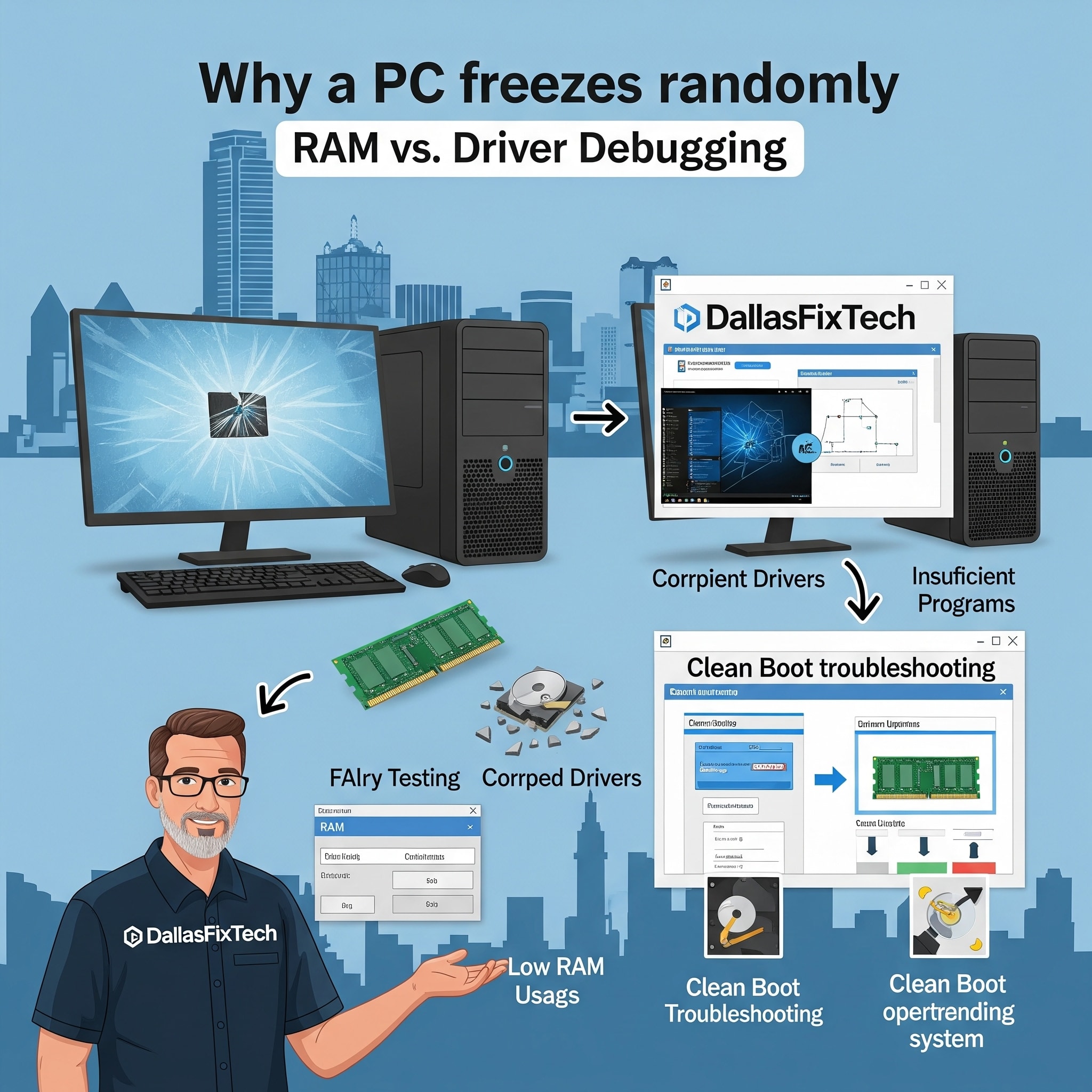
Why Your PC Freezes Randomly and How to Diagnose RAM vs. Driver Issues: DallasFixTech Debugging Guide in Dallas, TX
A computer that **freezes randomly**—locking up, becoming unresponsive, and often requiring a hard reboot—is one of the most frustrating and disruptive problems a PC user can face. These unexpected freezes can lead to lost work, interrupted gaming sessions, and general instability, often hinting at underlying hardware or software conflicts. If your PC is exhibiting this erratic behavior in Dallas, TX, efficiently diagnosing the root cause is crucial. At **DallasFixTech**, we specialize in PC troubleshooting and performance optimization. We break down how to accurately identify whether **faulty RAM (Random Access Memory)** or **problematic device drivers** are causing your PC to freeze unexpectedly, providing reliable solutions to restore stability and significantly improve your PC’s performance and overall user experience.
Common Causes of Random PC Freezes (DallasFixTech Diagnosis)
The issue can stem from various critical components:
- Faulty RAM (Memory): RAM errors are a very common cause of random freezes and crashes. If RAM modules are failing, improperly seated, or incompatible, they can provide corrupted data to the CPU, leading to system instability.
- Problematic Device Drivers: Outdated, corrupted, or incompatible device drivers (especially for graphics cards, chipset, storage controllers, or network adapters) can cause conflicts with the operating system, leading to freezes.
- Overheating (CPU/GPU): While often leading to shutdowns, severe overheating can also cause intermittent freezes as components throttle performance.
- Hard Drive/SSD Issues: A failing hard drive or an SSD with bad blocks can cause the system to freeze when trying to read or write data to it.
- Software Conflicts or Malware: Resource-heavy background applications, software bugs, or a virus/malware infection can consume excessive resources or interfere with system processes, leading to freezes.
- Power Supply Unit (PSU) Issues: An unstable or underpowered PSU can cause insufficient power delivery to components, leading to instability.
- Corrupted Operating System Files: Damage to essential Windows or macOS system files can cause system-wide instability.
DallasFixTech’s Diagnosis Techniques: RAM vs. Driver Debugging
Our comprehensive debugging approach helps pinpoint the exact problem:
- Run Memory Diagnostics (to Detect RAM Errors): This is the first critical step if RAM is suspected.
- **MemTest86 (Highly Recommended):** A free, bootable tool that thoroughly tests your RAM independent of the OS. Run it for several passes (ideally overnight) to detect even subtle errors.
- **Windows Memory Diagnostic (Built-in):** A quicker, less exhaustive built-in tool in Windows. Search for it in Start menu.
- **Physical Checks:** Power off, unplug, and reseat RAM modules firmly in their slots. Try booting with one stick at a time.
- Update, Roll Back, or Reinstall Device Drivers:
- **Graphics Drivers:** Always update your graphics drivers (NVIDIA, AMD, Intel) to the latest stable versions from the manufacturer's website. If issues started after a recent update, try rolling back to a previous version in Device Manager.
- **Chipset Drivers:** Update motherboard chipset drivers from your motherboard/laptop manufacturer.
- **Clean Reinstallation:** Use Display Driver Uninstaller (DDU) for a clean removal of graphics drivers before reinstalling new ones.
- Check for Resource-Heavy Background Applications or Malware:
- Use Task Manager (Windows) or Activity Monitor (macOS) to identify apps consuming excessive CPU, RAM, or disk I/O. End unnecessary tasks.
- Run a full system scan with reputable antivirus and anti-malware software (e.g., Windows Defender, Malwarebytes) to check for infections.
- Review Windows Event Logs for Error Clues: Open Event Viewer (search in Windows) and navigate to 'Windows Logs' > 'System' and 'Application'. Look for 'Error' or 'Critical' entries around the time of the freeze, which might point to a specific driver or component.
- Check SSD/HDD Health: Use tools like CrystalDiskInfo for SSDs or CrystalDiskMark for performance tests. Run `chkdsk` for HDDs.
- Monitor Temperatures: Use HWMonitor or Core Temp to monitor CPU and GPU temperatures. Overheating can lead to freezes.
- Clean Boot: Perform a clean boot (temporarily disable all non-Microsoft services and startup programs) to isolate third-party software conflicts.
Reliable PC Stability Solutions in Dallas, TX: Contact DallasFixTech!
Random PC freezes can be incredibly disruptive, but often fixable with accurate diagnosis. **DallasFixTech’s** comprehensive debugging pinpoints issues and applies targeted fixes to keep your PC stable. **Schedule a service** today. Contact DallasFixTech for PC freeze troubleshooting services in Dallas, TX, and restore your PC’s stability and performance, ensuring a smoother, more reliable computing experience!


