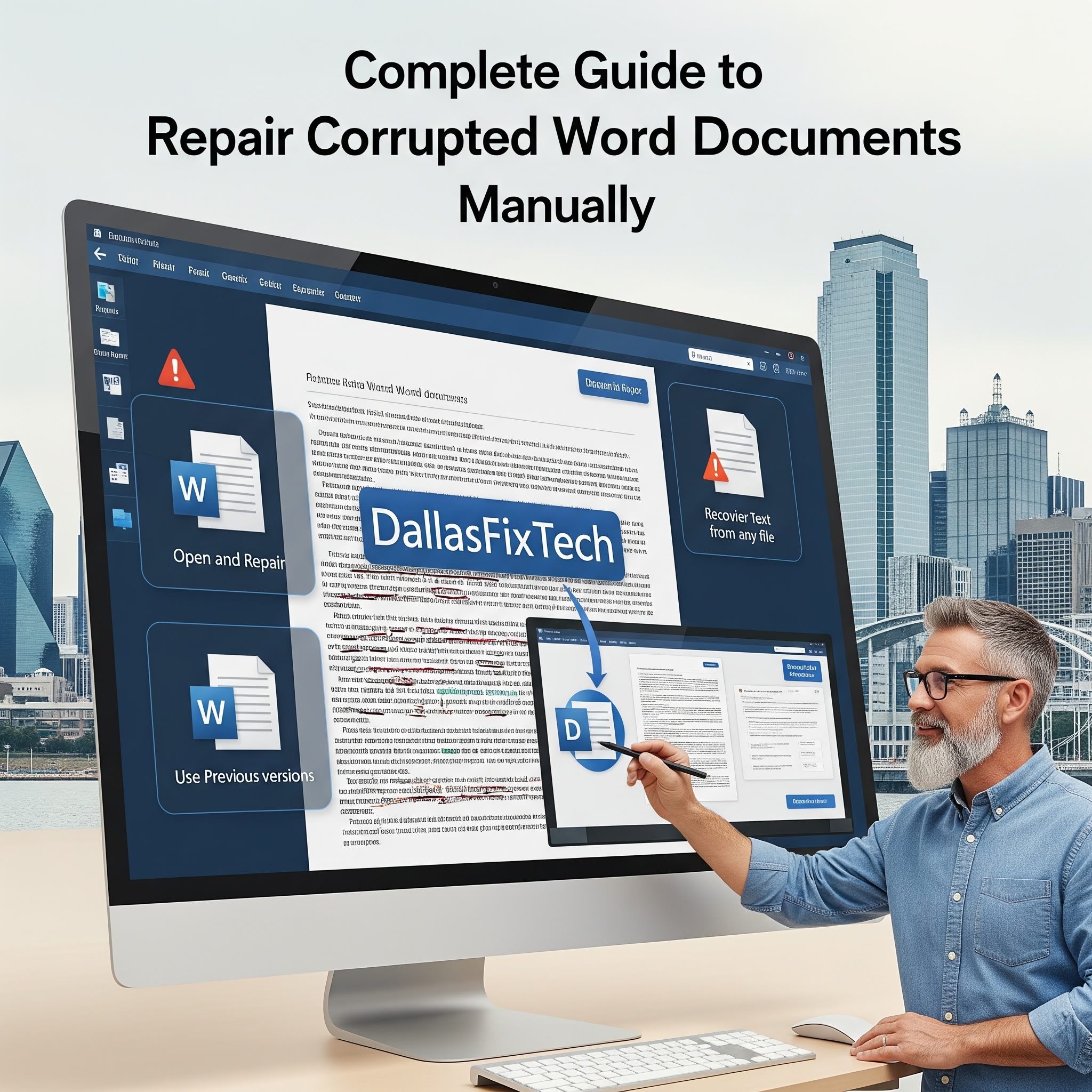
Manual Repair of Corrupted Word Documents: DallasFixTech’s Guide for Dallas, TX
Few computer problems are as disheartening as a **corrupted Microsoft Word document** that refuses to open or displays unreadable characters. Hours of work, important reports, or cherished memories can seem lost in an instant. While professional data recovery services (which **DallasFixTech** offers) are available for severe cases, many corrupted Word files can be recovered without specialized software, using only Word's built-in functionalities and manual techniques. For users in Dallas, TX, facing this frustrating situation, **DallasFixTech** walks you through safe, effective manual methods to restore your important documents, helping you rescue your data and avoid permanent loss.
Why Word Documents Get Corrupted (DallasFixTech Insight)
- Sudden Program Termination: Word crashing, unexpected power outages, or forced computer shutdowns during editing or saving.
- Malware or Virus Infection: Malicious software can directly damage file structures.
- Hard Drive/Storage Errors: Bad sectors on your storage drive can lead to data corruption during read/write.
- Network Connectivity Issues: Saving a file over a unstable network connection.
- Software Conflicts: Issues with Word add-ins or other programs running in the background.
DallasFixTech’s Step-by-Step Manual Repair Methods for Word Files
These techniques leverage Word's internal recovery capabilities:
- Use the 'Open and Repair' Option: This is your primary built-in tool.
- Open Microsoft Word (don't try to open the corrupted file directly from File Explorer).
- Go to **File** > **Open** > **Browse**.
- Navigate to the folder where your corrupted Word document is located.
- Select the file. Instead of clicking the 'Open' button directly, click the small **down arrow** next to it.
- From the dropdown menu, choose **'Open and Repair.'** Word will attempt to fix any structural issues and open the document. If successful, save it immediately with a new name.
- Open in Draft Mode (or Recover Text from Any File): If 'Open and Repair' fails, try to extract just the text.
- Open Word. Go to **File** > **Open** > **Browse**.
- In the 'Open' dialog box, change the 'Files of type' dropdown (usually 'All Word Documents') to **'Recover Text from Any File (*.*)'**.
- Select your corrupted document and click 'Open'. This will attempt to extract raw text, though you will lose formatting and images.
- Insert as File into a New Blank Document: This can sometimes bypass corruption.
- Open a new, blank Word document.
- Go to **Insert** tab > **Object** (in the 'Text' group) > **Text from File...**
- Navigate to your corrupted document, select it, and click 'Insert'. Word will try to insert the content into the new document.
- Open with Generic Word Processor (e.g., LibreOffice Writer): Sometimes, another word processor can open a file that Word can't. Open the file in LibreOffice Writer (free and open-source) or Google Docs. Copy the content and paste it into a new Word document.
- Search for AutoRecover Files / Temp Files: If Word crashed, it might have saved an AutoRecover version.
- Go to **File** > **Info** > **Manage Document** > **Recover Unsaved Documents**.
- Manually check Word's AutoRecover location (often `C:\Users\
\AppData\Roaming\Microsoft\Word\`). Look for `.asd` files. - Also check system temporary folders (`%temp%` or `C:\Users\
\AppData\Local\Temp\`) for `.tmp` or `~.doc` files.
Prevent Permanent Loss: Essential Backup Practices (DallasFixTech)
While recovery is possible, prevention is best. **DallasFixTech** strongly advises:
- Enable AutoSave with Cloud Storage: Always save your documents to **OneDrive, SharePoint, or Google Drive**. This enables continuous, real-time AutoSave and version history, making corruption nearly impossible.
- Shorten AutoRecover Interval: In Word, go to File > Options > Save. Reduce 'Save AutoRecover information every X minutes' to 1 or 2 minutes.
- Regular Backups: Implement robust backup solutions for your entire computer (e.g., Windows File History, Time Machine for Mac, or a cloud backup service).
Need Professional Help? Contact DallasFixTech’s Data Recovery Experts in Dallas!
Don't let a corrupted Word file lead to permanent data loss. **DallasFixTech** guides Dallas users through reliable manual repair techniques. **Schedule a service** today. Need professional help? **Contact DallasFixTech’s data recovery experts in Dallas, TX** for advanced data rescue, ensuring your important documents are restored safely and completely!


