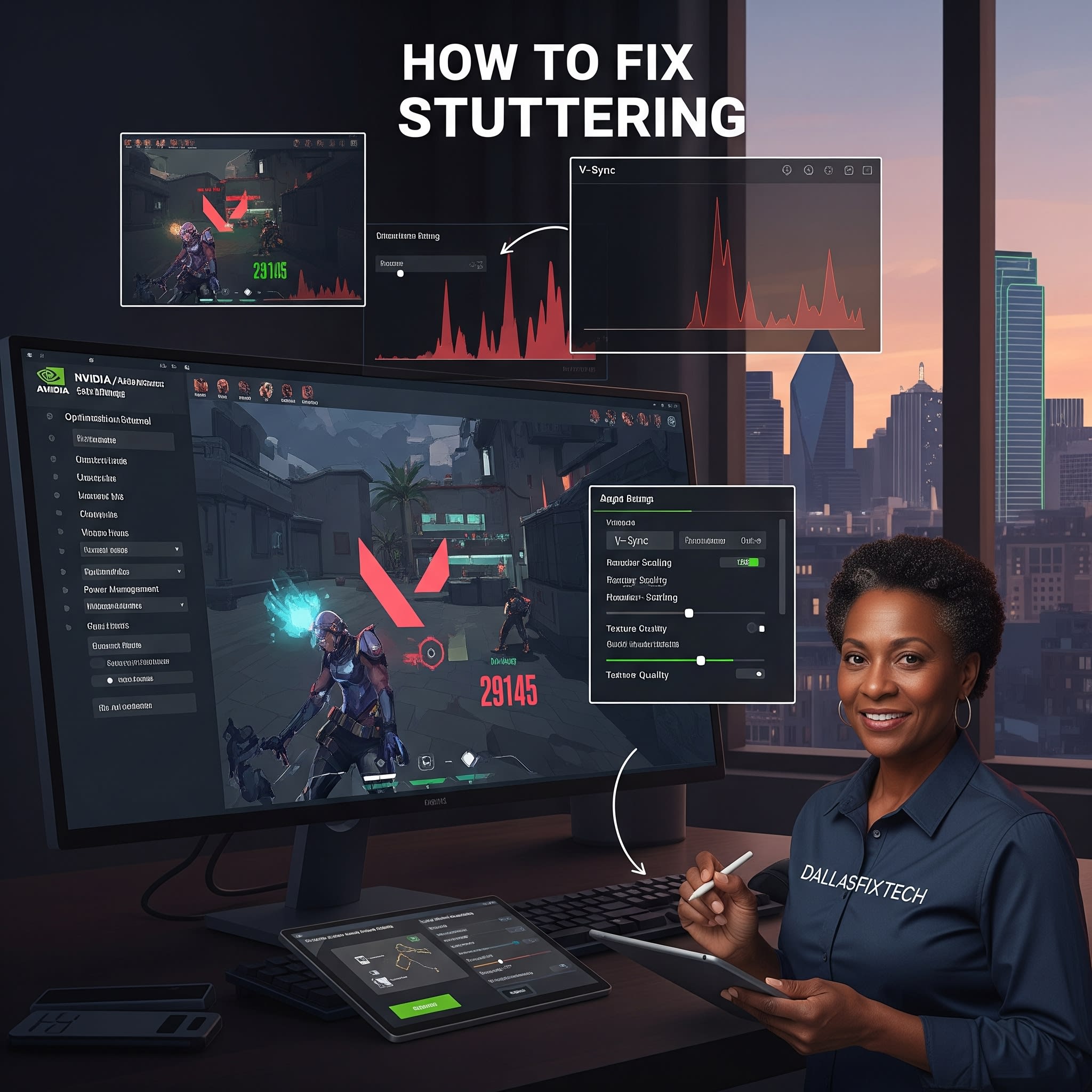
Fix Valorant Stuttering with Expert GPU Tweaks: DallasFixTech’s Guide for Dallas Gamers
Valorant, as a fast-paced, tactical shooter, demands consistent and smooth performance to ensure precise aim and fluid gameplay. Nothing is more detrimental to your K/D ratio or more frustrating than experiencing **stuttering**—sudden, brief freezes or frame drops—in the middle of a firefight. These micro-stutters can cost you crucial milliseconds, leading to missed shots and frustrating losses. If you're a Valorant player in Dallas, TX, battling performance hiccups, **DallasFixTech** provides expert NVIDIA and AMD GPU optimizations, alongside essential system-level tweaks, to eliminate stuttering and maintain smooth, consistent frame rates for a superior competitive experience. Get ready for seamless gameplay!
Common Causes of Valorant Stuttering (DallasFixTech Diagnosis)
Our experience with PC gaming optimization highlights these frequent culprits:
- Outdated or Suboptimal GPU Drivers: Graphics drivers are the bridge between your game and hardware. Old, buggy, or incorrectly configured drivers are a leading cause of stuttering.
- CPU Bottlenecks: Valorant is relatively CPU-intensive. If your CPU can't keep up with the GPU, it can cause stuttering.
- Background Applications & Overlays: Resource-intensive apps, browser tabs, or gaming overlays (Discord, GeForce Experience, Xbox Game Bar) running in the background can consume CPU/GPU cycles and cause performance dips.
- In-Game Settings Misconfiguration: Certain graphical settings in Valorant might be too demanding for your hardware, or settings like V-Sync might introduce input lag that feels like stuttering.
- Network Latency/Packet Loss: While primarily affecting ping, severe network issues can manifest as in-game stuttering.
- Power Management Settings: Windows power plans not set to 'High Performance' can limit CPU/GPU power.
- Game File Corruption: Damaged or incomplete game files can lead to instability.
- Overheating: While less common for stuttering than outright crashes, thermal throttling can lead to inconsistent performance.
DallasFixTech’s Expert NVIDIA & AMD Tweaks for Smooth Valorant Gameplay
We provide comprehensive optimization strategies for your gaming rig:
- Update to the Latest Game-Ready GPU Drivers: This is paramount.
- **NVIDIA:** Download the latest 'Game Ready Driver' from NVIDIA's official website or via GeForce Experience.
- **AMD:** Download the latest 'Adrenalin Software' from AMD's official website. Perform a clean installation if possible.
- NVIDIA Control Panel Tweaks:
- Disable V-Sync: For competitive FPS games, V-Sync often introduces input lag. Disable it in Valorant and in the NVIDIA Control Panel (Manage 3D Settings > Vertical sync: Off).
- Low Latency Mode: Set 'Low Latency Mode' to 'Ultra' to reduce input lag.
- Power Management Mode: Set 'Power Management Mode' to 'Prefer Maximum Performance' to ensure your GPU is always running at full power.
- Texture Filtering Quality: Set to 'High performance.'
- AMD Radeon Software Tweaks:
- Radeon Anti-Lag: Enable this feature to reduce input lag.
- Radeon Chill: If you want to limit FPS to save power or reduce heat when not actively aiming, configure Radeon Chill (but ensure minimum FPS is high enough).
- Radeon Boost: Can dynamically reduce resolution during fast camera movements to boost FPS.
- Texture Filtering Quality: Set to 'Performance' or 'Standard'.
- Close Unnecessary Background Apps & Overlays: Before playing, close all non-essential applications, browser tabs, and gaming overlays that might consume resources. Manage startup programs to reduce system load.
- Windows Power Options: Set your Windows power plan to **‘High Performance’** (or 'Ultimate Performance' on some systems) to ensure your CPU and GPU receive maximum power consistently.
- In-Game Settings Optimization (Valorant):
- Start with lower graphical settings (e.g., Medium or Low for shadows, textures, anti-aliasing) and gradually increase them while monitoring FPS.
- Ensure you are running the game at your monitor's native resolution and highest supported refresh rate.
- Verify Game Files: In the Riot Games Launcher, you can use the 'Repair' or 'Verify' option for Valorant to check for and fix any corrupt game files.
Need Hands-on Help Tuning Your Gaming PC in Dallas? DallasFixTech Experts Are Ready!
Don't let stuttering cost you rounds in Valorant. **DallasFixTech** provides Dallas gamers with proven NVIDIA and AMD optimizations to maintain smooth frame rates. **Contact DallasFixTech experts** today for professional PC gaming optimization and personalized configurations for your gaming setup in Dallas, TX. We're here to optimize your system and ensure a seamless, crash-free, and stutter-free Valorant experience!


