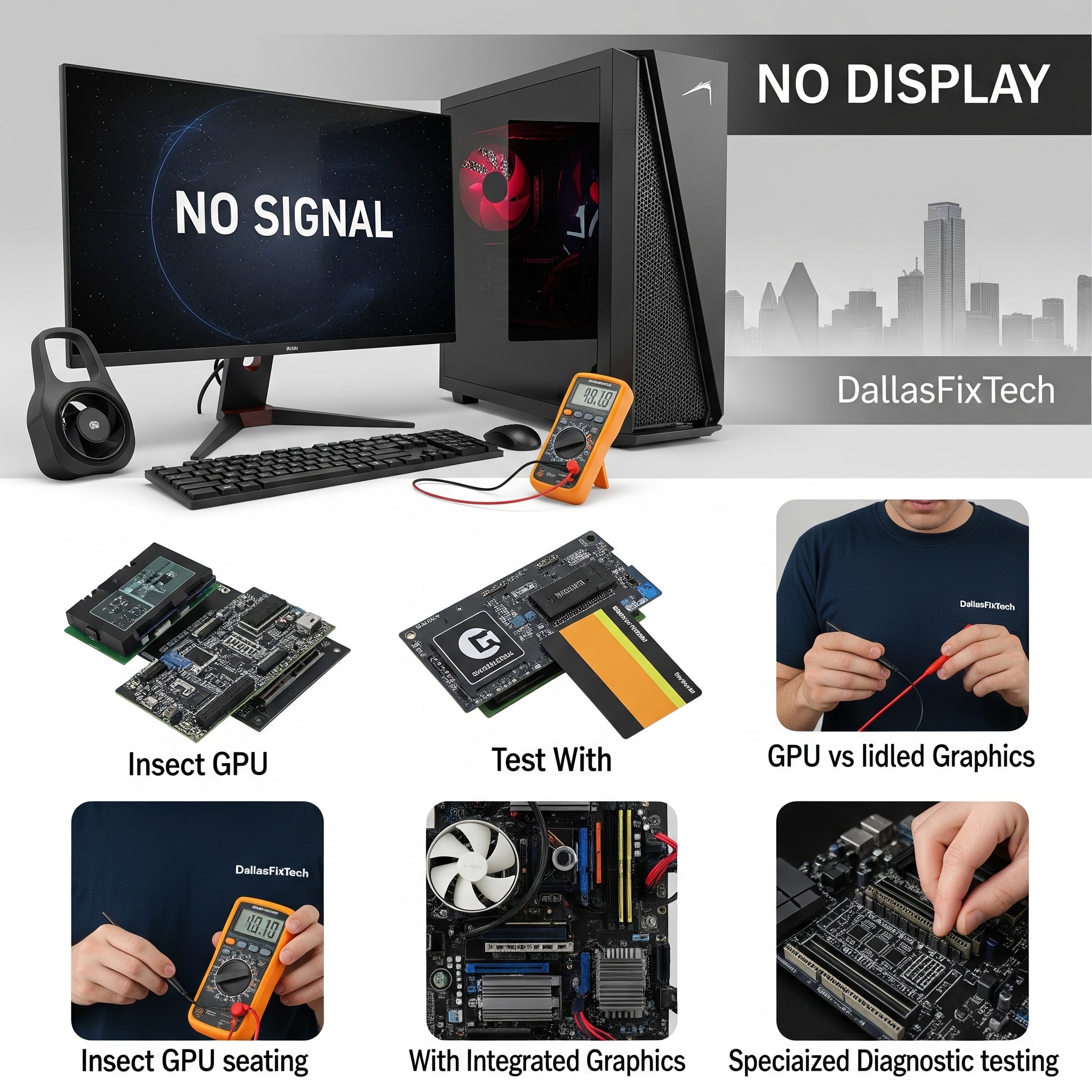
Fixing ‘No Display’ Issues on Gaming PCs: GPU or Motherboard? DallasFixTech Expert Tests in Dallas, TX
For any gaming enthusiast in Dallas, TX, the sight of a blank or black screen when you power on your meticulously built gaming PC is a chilling experience. A 'No Display' issue means your system is not sending any video signal to your monitor, effectively rendering your powerful rig useless. Identifying whether the **GPU (Graphics Processing Unit)** or the **motherboard** is at fault is crucial for a precise and effective repair, preventing unnecessary component replacements and restoring your gaming experience quickly. At **DallasFixTech**, we specialize in gaming PC repair and diagnostics, utilizing expert tests and advanced troubleshooting to pinpoint the exact cause and get your display back online.
Common Causes of ‘No Display’ on Gaming PCs (DallasFixTech Diagnosis)
These issues can stem from various points in the display chain:
- Disconnected or Faulty Video Cables: The simplest cause. A loose, damaged, or incompatible HDMI, DisplayPort, or DVI cable.
- Incorrect Monitor Input: The monitor is set to the wrong input source.
- Faulty GPU: The graphics card itself is dead, a component has failed, or its power cables are loose.
- Loose GPU Seating in PCIe Slot: The GPU might not be fully seated in its motherboard PCIe slot.
- Insufficient Power Supply Unit (PSU): An underpowered or failing PSU might not provide enough power to the GPU, especially under initial load.
- Motherboard PCIe Slot Failure: The PCIe slot where the GPU is installed might be faulty.
- Corrupted BIOS/UEFI Settings: BIOS settings related to video output (e.g., integrated vs. discrete graphics) are incorrect, or the BIOS firmware is corrupted.
- CPU Issues (especially with integrated graphics): If your CPU has integrated graphics and you're using that output, a CPU issue could prevent display.
- RAM Issues: Faulty or improperly seated RAM can prevent the system from POSTing (Power-On Self-Test) and thus from displaying anything.
- Short Circuits/Missing Standoffs: Improperly installed motherboard standoffs can cause shorts.
DallasFixTech’s Step-by-Step Troubleshooting for ‘No Display’ Issues
We provide expert GPU and motherboard tests for accurate diagnosis:
- Initial Checks (Basic):
- **Verify Power:** Ensure the PC is powered on and all fans (CPU, GPU, case) are spinning.
- **Check Monitor:** Ensure the monitor is on and set to the correct input source.
- **Inspect All Cable Connections:** Reseat all video cables (HDMI, DisplayPort) at both the GPU/motherboard and the monitor. Reseat all power cables (24-pin ATX, 8-pin CPU, PCIe power to GPU).
- **Try Different Cable/Port:** Test with a different video cable and a different port on the GPU/motherboard if available.
- Isolate GPU vs. Motherboard:
- **Test GPU in a Different System:** If possible, test your gaming GPU in a different, known-working PC. If it still shows no display, the GPU is likely faulty.
- **Test with Onboard Graphics (if applicable):** If your CPU has integrated graphics, remove the dedicated GPU and connect your monitor to the motherboard's video output. If you get a display, the issue is with your dedicated GPU or its PCIe slot.
- **Reseat GPU:** Power off the PC, unplug it, then carefully remove and re-seat the GPU firmly in its PCIe slot.
- Check RAM Seating: Power off and unplug the PC. Remove and reseat all RAM sticks firmly. Try booting with only one RAM stick at a time. Faulty or improperly seated RAM can prevent POST.
- Clear CMOS: Reset your motherboard's BIOS settings to default. This can be done by removing the CMOS battery for a few minutes or using a clear CMOS jumper (consult your motherboard manual).
- Inspect Motherboard PCIe Slots & Power Delivery: Visually inspect the PCIe slot for any physical damage. Ensure power cables to the GPU are securely connected from the PSU.
- Look for Corrupted Firmware or Driver Conflicts: While you have no display, if you suspect a BIOS issue, you might try a 'BIOS Flashback' feature (if your motherboard has one, allows flashing without CPU/RAM/GPU). For driver issues that might prevent boot, a clean OS reinstall might be considered after data backup.
- Listen for Beep Codes: If your motherboard has a speaker, listen for a sequence of beeps on startup (BIOS beep codes) which can indicate specific hardware failures. Consult your motherboard manual for the code meaning.
Professional Repair Services in Dallas, TX: Get Back to Gaming Without Interruption!
A 'No Display' issue is a critical problem for a gaming PC. **DallasFixTech** utilizes advanced diagnostics and replacement parts to fix GPU or motherboard faults quickly and effectively, minimizing downtime for gamers. **Schedule a service** today. Get back to gaming without interruptions. **Contact DallasFixTech** for trusted display issue repairs and expert gaming PC troubleshooting in Dallas, TX, and get your display back online fast!


