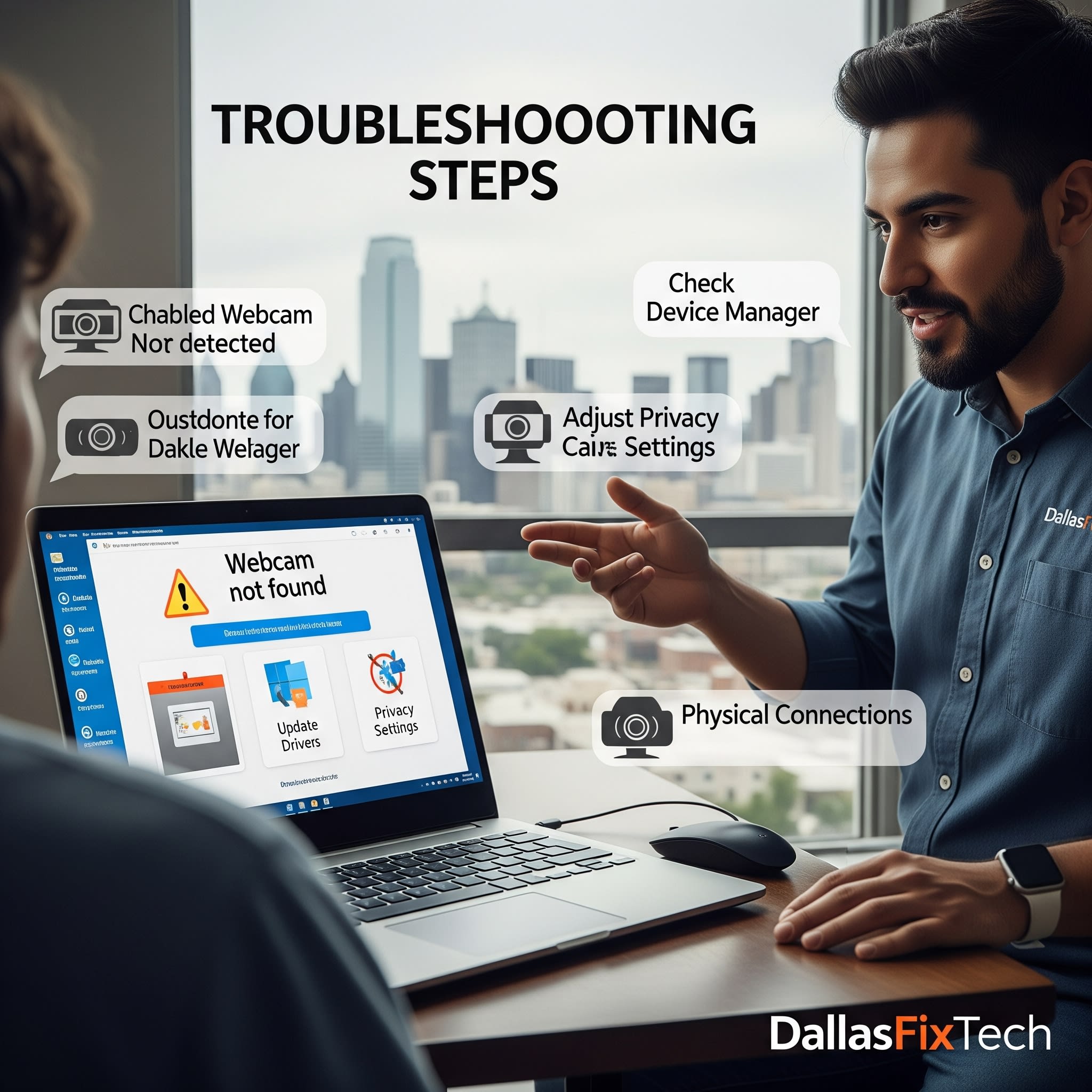
Fix Laptop Webcam Not Detected on Windows: DallasFixTech’s Guide to Invisible Webcam Fixes for Dallas, TX
In today's remote-first world, a functional webcam is crucial for video calls, online meetings, and virtual learning. So, when your **laptop camera suddenly disappears** from applications like Zoom or Microsoft Teams, or is entirely missing from Device Manager, it can be incredibly frustrating. This 'invisible' or non-functioning webcam issue can stem from a variety of causes, from simple disabled settings and privacy issues to missing drivers or underlying hardware faults. If your webcam isn't working on your laptop in Dallas, TX, **DallasFixTech** can help restore your webcam’s functionality, ensuring your video calls are crisp and clear again.
Why Your Webcam Might Disappear or Not Work (DallasFixTech Diagnosis)
Our experience with webcam issues highlights these frequent culprits:
- Camera Disabled in BIOS or System Settings: Many laptops have a physical webcam kill switch or a function key to disable the camera. It can also be disabled in the system's BIOS/UEFI settings or in Windows Privacy settings.
- Privacy Settings Blocking Camera Access: Windows has granular privacy settings that can block apps from accessing your camera, even if the webcam itself is functional.
- Missing or Corrupt Drivers: The webcam requires specific drivers to operate. Outdated, corrupted, or improperly installed camera drivers can cause the webcam to be undetected.
- Hardware Malfunction: The webcam module itself might be faulty (e.g., a broken lens, internal circuit damage, or a loose connection from a drop).
- Windows Update Issues: A recent Windows update might have introduced compatibility issues with your webcam driver.
- Antivirus or Security Software: Overly aggressive security software can sometimes block webcam access.
- USB Connection Issues (for external webcams): If you're using an external webcam, a faulty USB port or cable can prevent detection.
DallasFixTech’s Step-by-Step Fixes for Invisible or Non-Functioning Webcams
We provide comprehensive troubleshooting to restore your webcam's functionality:
- Check Physical Kill Switch & Function Keys: Many laptops (Dell, HP, Lenovo) have a physical webcam shutter or a function key combination (e.g., `Fn + F6`, `Fn + F10`) to toggle the camera. Ensure it's not physically covered or disabled.
- Enable Camera in Windows Privacy Settings:
- **Windows 11:** Go to Settings > Privacy & security > Camera. Ensure 'Camera access' is ON and 'Let apps access your camera' is ON. Review specific app permissions below this.
- **Windows 10:** Go to Settings > Privacy > Camera. Do the same.
- Check Camera Status in BIOS (especially on HP/Dell): Restart your laptop and enter the BIOS/UEFI settings (usually by pressing F2, F10, F12, or Delete during boot). Look for a 'Camera,' 'Webcam,' or 'Integrated Peripherals' section and ensure it's 'Enabled.'
- Reinstall Webcam Drivers from Manufacturer’s Site:
- Open Device Manager (search for it in Windows).
- Expand 'Cameras,' 'Imaging devices,' or 'Sound, video and game controllers.'
- Right-click your webcam (it might appear as 'Unknown device' or have a yellow exclamation mark) and select 'Uninstall device.' Check 'Attempt to remove the driver software for this device' if available, then restart your PC.
- After rebooting, Windows might reinstall a generic driver. If not, download the latest camera driver directly from your laptop manufacturer’s official support site for your specific model.
- Check Antivirus/Firewall: Temporarily disable your third-party antivirus or firewall to see if it's blocking camera access. Remember to re-enable them.
- Windows Update Troubleshooting: Run the Windows Update Troubleshooter (Settings > System > Troubleshoot > Other troubleshooters > Video Playback/Camera).
- Professional Webcam Repair: If all software fixes fail, the webcam module itself might be faulty, or its internal cable connection is loose/damaged. **DallasFixTech** offers professional laptop camera repair, including internal cable reseating or webcam module replacement.
Still Not Working? Book a Webcam Repair at Our DallasFixTech Center!
Don't miss out on important video calls because of a non-functioning webcam. **DallasFixTech** helps restore your webcam’s functionality. **Schedule a service** today. Still not working? Book a webcam repair at our DallasFixTech center in Dallas, TX, for expert diagnostics and professional webcam replacement!


