Why Your External SSD Isn’t Recognized and How to Recover Partitions: DallasFixTech’s Guide in Dallas, TX
External SSDs (Solid State Drives) are popular for their speed, portability, and durability, making them ideal for backing up important files, expanding laptop storage, or transferring large media projects. However, few things are as alarming as plugging in your **external SSD only to find it isn’t recognized** by your PC, or that your valuable data is suddenly inaccessible. This frustrating issue often points to **partition corruption, driver conflicts, or underlying hardware problems**. Immediate troubleshooting can significantly increase your chances of saving your valuable data and avoiding costly professional data recovery. At **DallasFixTech** in Dallas, TX, we offer expert guidance to help you diagnose and resolve these issues, recover lost partitions, and regain access to your files, along with tips to prevent future problems.
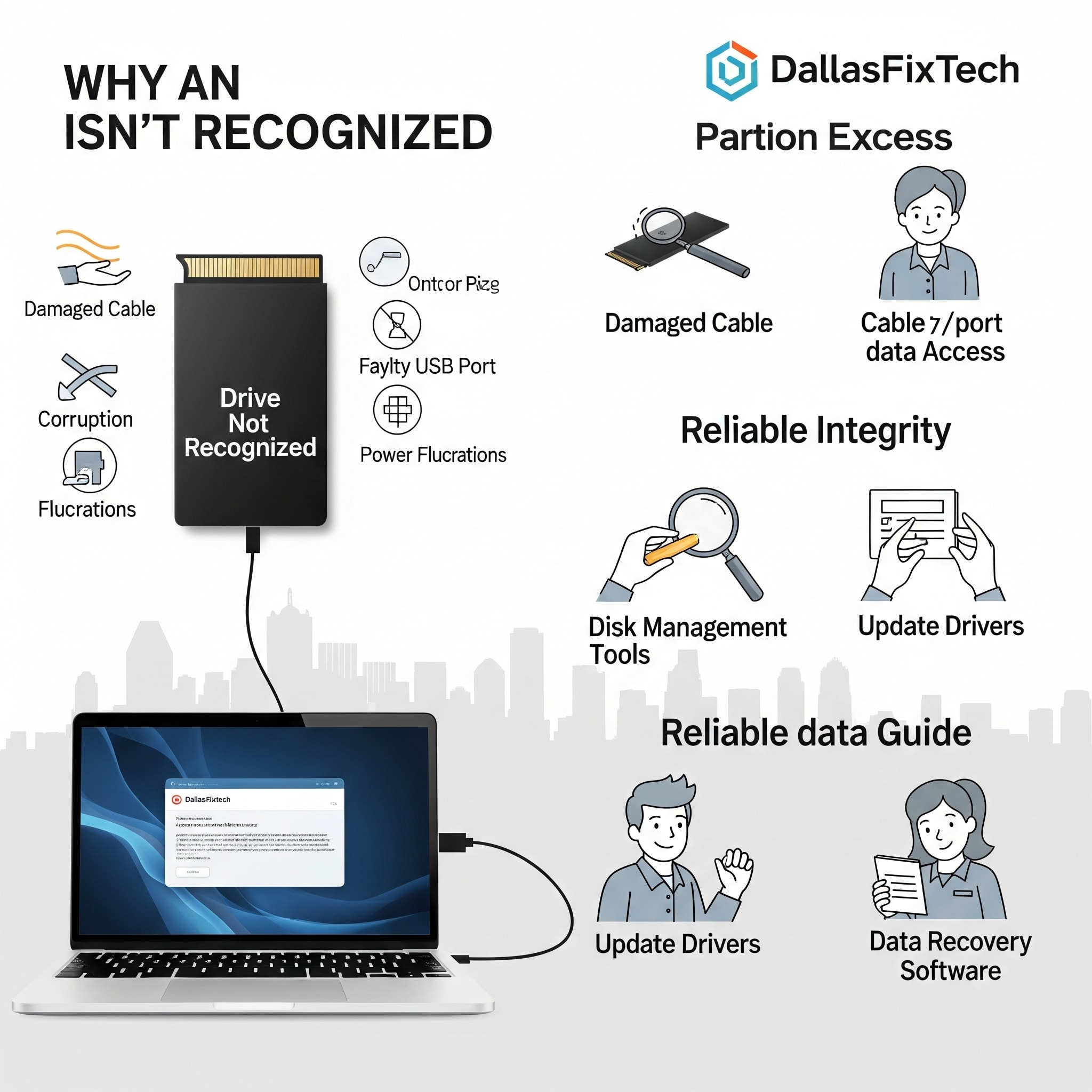
Common Reasons Your External SSD Isn’t Recognized (DallasFixTech Diagnosis)
Our experience with external storage devices highlights these frequent culprits:
- Faulty USB Port or Cable: The simplest cause. A damaged USB port on your PC, a broken or low-quality USB cable, or a loose connection can prevent the SSD from being detected.
- Disk Management Issues (Unallocated/Corrupted Partition): Your SSD might be detected by the system, but its partition could be corrupted, unallocated (meaning Windows doesn't see a usable drive letter), or formatted with an incompatible file system.
- Driver Conflicts or Outdated Drivers: Problems with USB controller drivers, chipset drivers, or the SSD's own drivers can prevent proper recognition.
- Insufficient Power: Some external SSDs (especially older ones or those in certain enclosures) might not receive enough power from a single USB port.
- External Enclosure Malfunction: If your SSD is housed in an external enclosure, the enclosure itself or its controller board could be faulty.
- SSD Firmware Issues: Bugs in the SSD's firmware can cause it to become unresponsive.
- Hardware Failure of the SSD Itself: The SSD might have completely failed internally, or experienced severe bad blocks.
- Corrupted File System: The file system on the SSD (e.g., NTFS, exFAT, HFS+) might be corrupted due to improper ejection or system crashes.
DallasFixTech’s Step-by-Step Troubleshooting & Partition Recovery Guide for External SSDs
Follow these steps to diagnose and potentially recover your data:
- Try Different USB Ports and Cables: Always start by testing your external SSD with different USB ports on your PC (try both USB-A and USB-C if available) and a different, known-good USB cable. This rules out common connection problems. Try connecting to another computer if possible.
- Check Disk Management (Windows):
- Press `Windows Key + X` and select 'Disk Management.'
- Look for your external SSD. It might appear as 'Disk X' (where X is a number) and show 'Unallocated Space,' 'RAW,' or 'Healthy (Primary Partition)' without a drive letter.
- If it's 'Unallocated,' right-click and try to create a new simple volume. **Caution: This will erase data unless you intend to recover partitions first.**
- Update/Reinstall Drivers: In Device Manager (search for it in Windows), expand 'Universal Serial Bus controllers' and 'Disk drives.' Look for yellow exclamation marks. Right-click and 'Update driver' or 'Uninstall device' (then restart PC).
- Use Professional Recovery Software to Restore Lost Partitions Safely: If Disk Management shows 'Unallocated' space and you haven't formatted it, professional data recovery software (e.g., EaseUS Partition Master, Disk Drill, TestDisk, MiniTool Partition Wizard) can scan for and recover lost or deleted partitions without erasing data. **DallasFixTech** uses these tools for reliable recovery.
- Test External Enclosure: If your SSD is in an enclosure, carefully remove the SSD from the enclosure and try connecting it directly to a desktop PC via a SATA cable (if it's a SATA SSD) to rule out the enclosure as faulty.
- Update SSD Firmware: Check your SSD manufacturer's website for any firmware updates for your specific drive model.
- Run Disk Check Commands: Open Command Prompt as Administrator. If the drive has a letter, run `chkdsk X: /f /r` (replace X with your drive letter) to check for and repair file system errors.
- DallasFixTech's Comprehensive Recovery Services: If these steps fail, **DallasFixTech** offers comprehensive recovery services for external SSDs to help you regain access to your files without data loss, even from severely corrupted or failing drives.
Prevent Future Problems: Back Up Regularly and Safely Eject Drives!
Protecting your data is crucial. **DallasFixTech** offers comprehensive recovery services to help you regain access to your files without data loss. **Schedule a service** today. Prevent future problems by backing up regularly and safely ejecting drives. **Contact DallasFixTech** for trusted SSD diagnostics and recovery services in Dallas, TX, and safeguard your valuable data!


